APC UPS Blog - ExcessUPS.com

  • Blog
  • Guides
  • Technical
  • Tips
  • Rants

What are the Main Types N+1 UPS Configurations?

The N+1 UPS configuration is mainly designed for computer servers used in businesses. This configuration ensures a backup UPS is available in case the primary UPS fails to function properly during a power outage. The three main types of N+1 configuration are as follows:

Isolated Redundant Configuration

While an isolated redundant configuration is considered as an N+1 system, it does not have a paralleling bus and the UPS modules may have different capacities. Power goes through primary UPS device in this setup while the secondary or the isolation UPS is connected to the main UPS to act as backup in case the primary UPS does not work. When the main UPS fails to function properly, the secondary of isolation UPS devices takes over and provides backup power when the main source of power goes out.
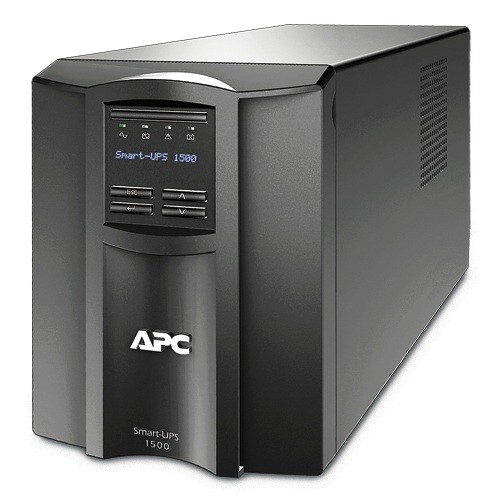
3-apc-smart-ups-1500va-lcd-120v-smt1500Parallel Redundant Configuration

The parallel redundant configuration features UPS devices positioned parallel to each other. The UPS devices in this configuration should have the same capacity and share an output bus. In addition, it is advisable to have UPS devices with the same brand for this configuration. When one UPS device in this configuration does work as it should, power will be transferred to the other UPS devices.

Internally “Modular” Redundant Configuration

An internally “modular” redundant configuration features a battery that is connected to each UPS device. This configuration features a battery system connected to all UPS devices. The UPS devices are connected to a common output bus. When one UPS device in this setup does not work properly, the other UPS devices ensure the battery system continues to function. But, the entire system may be affected if the battery needs to be replaced in this configuration.


References:

http://www.schneider-electric.com/ww/en/download/document/APC_VAVR-A84MRT_EN?_downloadcenter_WAR_downloadcenterRFportlet_documentId=4015192344

http://www.apc.com/salestools/SADE-5TPL8X/SADE-5TPL8X_R3_EN.pdf

http://www.schneider-bgclub.com/catalog/1_Aparatura_NN/4.UPS/Katalozi/Design%20guide%20UPS.pdf

Filed Under: Technical Tagged With: Configuration, N+1 UPS, ups

What is a PFC Power Supply?

PFC is the acronym for power factor correction or power factor controller. It minimizes the amount of reactive power produced by computers. Reactive power is the power stored and released by the capacitors and inductors of a device. While reactive power is useless to an electronic device, power companies include this type of power in the charges users have to pay.

1-apc-back-ups-pro-external-battery-packThese charges are reduced when of PFC is used. In addition to computer systems, PFC also reduces reactive power on other equipment, including induction welders, high bay lighting and arc furnaces. Aside from reducing the cost of power, PFC also ensures power distribution to the devices connected to the power supply is efficient.

There are two types of PFC: Active PFC and Passive PFC. Active PFC uses electronic circuits in efficiently distributing power to devices connected to the power supply. On the other hand, Passive PFC is simple and uses capacitors and inductors in enhancing efficient power distribution. The complexity in the method used in Power Factor Correction by Active PFC makes it more expensive than Passive PFC. But, Active PFC is also more efficient in the use of power compared to Passive PFC.

A PFC Power Supply is a device that ensures power for electronic equipment is efficiently used. It also reduces the cost of electricity by minimizing the amount of reactive power produced by computers and other devices. The PFC power supply should be connected to an uninterruptible power supply (UPS) to ensure the devices have suitable power in case the main power source goes out. But, it is also important to avoid connecting the UPS to a power strip to avoid a power spike that can destroy the devices connected to it.


References:

http://whatis.techtarget.com/definition/PFC-power-factor-correction-or-power-factor-controller

https://cooltechpc.com/articles/power-factor-correction-pfc

http://www.tomshardware.com/forum/340854-28-pure-sinewave-active-power-supplies

http://electronicdesign.com/power/what-s-difference-between-passive-and-active-power-factor-correctors

Filed Under: Technical Tagged With: PFC. Power Factor Correction, Power Factor Controller

Should You Plug Your UPS into a Power Strip?

An uninterruptible power supply (UPS) device is used to ensure electronic devices have a few minutes of power when the main supply of power goes out. This ensures all the necessary critical files are saved. Some UPS devices also feature a surge protector to prevent sudden power spikes from affecting devices connected to it.

Some users connect a UPS to a power strip since the location of the electronic devices is far from the power outlet. This is not advisable since it may cause the UPS to remain on battery power while it is being used. This will happen since the equipment will draw more power from the UPS, compelling it to remain online all the time. Due to this, the battery will be worn out faster since it will be used most of the time while the UPS is connected to a power strip.

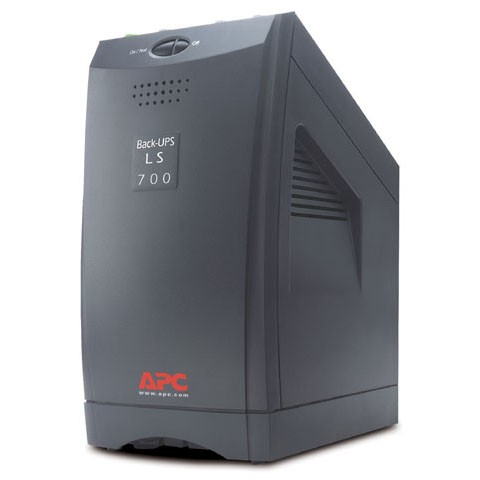
APC Back UPS LS 700 BP700UCA power strip may also increase the current flowing into the UPS, which can potentially increase the chances of a power spike. The risk of a power spike will increase if the UPS is daisy-chained using a number of power strips.

Connecting the UPS to a power strip will also void the Equipment Protection Policy (EPP). The EPP is a guarantee that the manufacture will pay for the repair of any equipment connected to the UPS if they are damaged due to power line issues. The manufacturer will also replace the UPS if it is damaged by these issues.

In the end, it is important to plug a UPS directly to power source to prevent any issues that will put all electronic devices connected to it at risk.


References:

http://www.apc.com/us/en/faqs/FA158852/

https://forums.anandtech.com/threads/is-it-safe-to-use-power-strip-or-surge-protector-attached-to-a-ups.258005/

http://www.geek.com/xyzcomputing/daisy-chain-your-ups-571188/

http://www.apc.com/ca/en/support/product-support/registration-warranty-services.jsp

http://www.apcmedia.com/salestools/ASTE-6Z7UYR/ASTE-6Z7UYR_R0_EN.pdf?sdirect=true

Filed Under: Technical Tagged With: Power Strip, ups

What are waveform distortions?

Waveform distortions are common power problems that cause equipment to malfunction and sources of power to overload. It is an unexpected change in the waveforms of current and voltage as they pass through a device. There are five main types of waveform distortions: DC offset, harmonics, interharmonics, notching and noise.

DC offsets are instances where direct current (DC) overlaps an alternating current (AC) distribution system. This overlapping of two different types of current can cause overheating in the equipment.

Harmonics occur when some loads affect the main waveform of voltage. In this situation, the new loads prevent the waveform from reaching its highest and lowest levels. Harmonics can cause circuit breakers to trip and transformers to overheat.

APC Smart UPS SRT Step-down Transformer

Interharmonics is a condition where a signal affects the main voltage waveform. It can cause display monitors to flicker and equipment to overheat. Interharmonics can also cause communication issues.

Notching is an intermittent disturbance that can affect voltage. It normally happens when light dimmers or arc welders are being used. It results in data loss and issues with the transmission of data.

Noise is any unnecessary current or voltage affecting the waveform of the main power supply. This waveform distortion can cause data issues and equipment to malfunction.

The effects of waveform distortion can be reduced through the use of an uninterruptible power supply (UPS) and filter equipment. Line conditioners can also be used to minimize the effect of this power problem. Reducing the load used on a transformer can also help reduce waveform distortion. Relocating equipment causing this common power problem can also help prevent it from happening.


References:

http://ecmweb.com/content/voltage-waveform-distortion-causes-effects-cures

http://www.dictionaryofengineering.com/definition/waveform-distortion.html

http://www.apcmedia.com/salestools/VAVR-5WKLPK/VAVR-5WKLPK_R1_EN.pdf?sdirect=true

https://www.tripplite.com/shared/literature/White-Paper/Common-Power-Problems-and-Power-Protection-Solutions-White-Paper-EN.pdf

https://www.linkedin.com/pulse/6-common-power-problems-ted-ochieng-otieno-cem-?forceNoSplash=truehttps://www.captech.com.au/2016/05/06/common-issues-with-power-supply/


Filed Under: Technical Tagged With: dc offset, harmonics, interharmonics, noise, notching, power problems, uninterrupted power supply, uninterruptible power supply, ups

What are Swells and Overvoltages?

Swells and overvoltages are basically the opposite of sags and undervoltages. A swell is an increase in voltage lasting up to one minute, and an overvoltage is the long-term effect of a swell. These situations happen when available voltage is higher than the demand. It normally starts when there is a huge demand for power. Due to this, utility companies normally increase voltage to meet the demand. When the demand goes down rapidly, there is the possibility that the voltage will remain high causing the swell or overvoltage.

APC SMART UPS RT - UPS On-LineThese power problems normally affect rural areas since utility companies usually leave voltage at a high level over the weekend even after the demand has gone down. These situations also happen when the system voltage regulator is inefficient, or when the transformer settings are not set properly by the power company.

Even when overvoltages are brief, they can be damaging to equipment. These power problems can cause equipment to overheat and damage them. They may also cause lights and monitors to flicker. Data centers are susceptible to these situations since they may cause data errors in computer systems. Semiconductors may also be damaged by overvoltages and swells.

To prevent swells and overvoltages from affecting sensitive equipment, it is necessary to use an uninterruptible power supply or UPS system. While the most basic protection against this power problem is a standby UPS system, the best way to protect equipment from a swell or overvoltage is by using an online UPS. These devices protect equipment from sudden increases in voltage. They automatically adjust voltage in case these power problems occur to ensure electricity-powered equipment are protected.

Sources:

http://www.on365.co.uk/Power__and__Cooling/Most_Common_Power_Problems.aspx

http://www.apcmedia.com/salestools/VAVR-5WKLPK/VAVR-5WKLPK_R1_EN.pdf?sdirect=true

https://www.linkedin.com/pulse/6-common-power-problems-ted-ochieng-otieno-cem-?forceNoSplash=true

https://www.tripplite.com/support/articles/articleid/common-power-problems

http://www.acousticfrontiers.com/201348what-are-swells-and-overvoltages/

http://electricity2all.blogspot.com/2013/05/over-voltage-and-voltage-swell.html

Filed Under: Technical Tagged With: Common Power Problem, overvoltage, swell, uninterruptible power supply, ups, voltage regulator

Why does my APC WEB/SNMP Management Card Report Warmstarts and Coldstarts

Your management card may send you the following alerts:

“System: Warmstart” (or, in AOS v5.1.5 or higher, “System: Network Interface restarted”) and “System: Coldstart” (or, in AOS v5.1.5 or higher, “System: Network Interface Coldstarted”).

These alerts are sent when the Network Management Card restarts. The alerts don’t necessarily indicate a problem, and, when they do, they only affect the Network Management Card’s interface. Your UPS load is unaffected.

A “System: Coldstart” alert means that the Network Management Card (NMC) has just been powered; this may happen if the device powering the Network Management Card suffers an interruption of power.

A “System: Warmstart” alert means that the Network Management Card (NMC) has restarted without losing power. This may happen for multiple reasons:

  • The default gateway is wrong or the network traffic is too heavy and the gateway can not be reached.
  • After a new AOS or Application firmware upgrade has been uploaded to the NMC.
  • Modification of some NMC settings.
  • The Reset button on the front panel of the NMC is pressed.
  • Web Interface Reboot request
  • Network settings have changed – At least one of the TCP/IP settings changed.
  • A request to restart the current SNMP agent service was received.
  • An internal request to load and execute a new SNMP agent service was received.
  • A request to clear the NMC’s network settings and restart the SNMP agent service was received.
  • Smart-UPS Output Voltage Change
  • Remote Monitoring Service (RMS) communication has been lost (NMC2 only)
  • An internal firmware error was detected by the NMC and to clear the error, the NMC firmware explicitly reboots itself as a failsafe.
  • An undetected firmware error occurred and the hardware watchdog reboots the NMC to clear the error.

What you can do:

You should download all available event logs for your product: event.txt, data.txt, and config.ini for NMC1 and NMC2, as well as debug.txt and dump.txt for NMC2 only.

  •     Review the event.txt file to see if any of the causes listed above could be why your Network Management Card has restarted or coldstarted.
  •     Is this affecting more than one Network Management Card in your environment? This may point to a network traffic issue, causing the Management Card to reboot due to the watchdog mechanism outlined above.
  •     Note the frequency of the events in question. Can you pinpoint it to a certain time/certain set of events before and after?     If the restarts are always at the same intervals, this may relate to a network traffic issue.
  •     Depending on what you find, try rebooting your card’s interface or resetting the card to defaults (after backing up your configuration and obtaining the aforementioned log files). See if the issue persists.

The following Network Management Cards may generate these alerts:

  1. Web/SNMP Card – AP9606

Which is embedded in, among others: APC Environmental Monitoring Unit 1 (AP9312TH)

  1. Network Management Card 1 (NMC1) – AP9617, AP9618, AP9619

Which are embedded in, among others: Metered/Switched Rack PDUs (APC AP78XX, AP79XX), Rack Automatic Transfer Switches (APC AP77XX), Environmental Monitoring Units (APC AP9320, AP9340, NetBotz 200)

  1. Network Management Card 2 (NMC2) – AP9630/AP9631CH, AP9631/AP9631CH, AP9635/AP9635CH

Which are embedded in, among others: APC 2G Metered/Switched Rack PDUs (AP84XX, AP86XX, AP88XX, AP89XX), and some audio/video network management enabled products.


Here is the link to the original support document from APC:
Why does my management card warm start and cold start


Filed Under: Technical

Battery LED’s flashing on a Smart-UPS even after Battery Replaced

“I replaced the batteries on my Smart-UPS, the replace battery light went OFF but the battery charge LED’s are still flashing, what do I do?”

There are several reasons the battery charge LED’s flash, but in this case, the calibration is inaccurate. When the previous battery was coming to the end of it’s life, it wasn’t able to support the protected load for more than 2 minutes. That sets off an alarm in the UPS and it starts blinking the battery LEDs to let you know. The firmware in the UPS has reprogrammed itself with this error.

When you replaced the battery, the UPS sensed the battery was holding a charge and the replace battery light went off, but the UPS really doesn’t have a way of knowing how good this battery is.  So the blinking lights remain to let you know the UPS doesn’t think that it can provide more than two minutes of run time.

In order to clear this error, you need to perform a run time calibration. If you have a newer SUA unit like the SUA750, SUA1000 or the SUA1500 you can try the software calibration feature in PowerChute. If you’d like to perform a manual calibration, that will work as well (some say even more accurately). Make sure to charge the battery to 100%, it’s even better if you let the unit charge for 24 hours.

If you have an older unit like the SU700NET, SU1000NET, SU1400NEt then it’s best to perform a manual run time calibration. The software calibration isn’t as accurate with these units.

Follow the manual calibration instructions to perform this calibration and clear the error.

Once the calibration is complete, the UPS should be reprogrammed with the new run time availability and the blinking lights on the battery bars should disappear.

Filed Under: Technical Tagged With: battery led, blinking led

How to Discharge (Brain Dead) a Back-UPS

If  you replaced the batteries on a Back-UPS 800 or any other Back-UPS model but the replace battery light didn’t go away, the unit might need to be reset. This is called “brain dead”, to purge the brain of the UPS of any remaining charge. This is also useful if your unit is acting strange, it’s always good to give this a try to see if the problem can be reset.

APC Back-UPS RS800 BR800

Follow this easy procedure to brain dead the Back-UPS:


1. Disconnect any attached load. (any equipment that’s plugged in to the UPS)

2. Unplug the UPS from the wall socket.

3. Disconnect the UPS’ internal battery. (you can disconnect the connector or pull the battery out completely if it’s easier)

4. Push and hold the “On” button on the UPS for 5 seconds (you might hear a click, chirp or lights will blink)

5. Reconnect internal battery.

6. Plug UPS in wall socket.

7. Turn UPS on.


This procedure should reset the UPS.

Filed Under: Technical Tagged With: br800, brain dead, discharge, reset

Manual Runtime Calibration for APC UPS

Battery calibration can be performed by software, network management card, or manually. On the newer units (SUA, SMT) software calibration has become more accurate so you can give it a try. On older SU models, it’s best to do the manual hardware calibration. If you’re not getting the run time you thought you should have with the software method, perform a manual calibration to get a more accurate run time calculation.

Some people only do software calibration and consider that good enough, others prefer to do a manual calibration as a tried and true way of getting exact run time numbers. Neither is really wrong, it’s a matter of preference.


Follow these steps to do a proper manual calibration on your APC UPS:

1. Battery must be at 100% capacity when the Runtime Calibration is initiated/started. (charge the UPS for 24hours prior)
2. The UPS must have 30-34% load on it during the calibration (Constant load, try: lamps, computers, monitors. Measure load % by PowerChute)
3. Disconnect the serial/USB comm cable from the UPS (you don’t want PowerChute to shut down equipment)
4. The battery must be discharged completely  (unplug UPS from wall outlet, let the UPS to shut off completely due to a discharged battery).
5. Remove the attached load (ie – lights, computers)
6. Let the UPS charge for 8 hours while OFF (plug back into utility power, press OFF button when UPS turns ON)
7. Turn on UPS (run time should now be accurate)


If you’re confused about this process or stuck on one of the steps, email us at sales@excessups.com or give us a call toll free at 866-311-1945.

Filed Under: Technical Tagged With: apc calibration, calibration, manual calibration

Replacement Batteries for the SU2200XLNET

How many batteries go in to a Smart-UPS 2200XL?

APC Smart-UPS XL 2200


This is a common question so don’t feel bad if you’re confused. The SU2200XLNET uses 1x RBC11. The RBC11 consists of 2 sets of batteries the replaces the two sets of batteries inside your UPS. All you need is 1x RBC11!

SU220XLNET Batteries


If you have external battery packs attached to your 2200XL, then you need a RBC11 for each one of those. Always replace them all at once to make sure everyting is synced, keeps maintenance simple.

Filed Under: Technical